




Why Won’t My Flashlight Work on My iPhone?

The flashlight is one of the most convenient features on an iPhone. Whether you need to light up a dark room, find something under furniture, or navigate in low-light environments, the flashlight can be activated instantly from the lock screen or Control Center. Because it’s so easy to access, many users rely on it daily.
However, sometimes the flashlight suddenly stops working. You may tap the flashlight icon and nothing happens, the icon appears grayed out, or the flashlight briefly turns on and then shuts off. In some cases, it may stop working after an iOS update or when another app is using the camera.
In this guide, we’ll explain why the flashlight may not work on your iPhone, list the most common causes, and walk you through several effective solutions. If basic methods don’t fix the issue, we’ll also introduce a powerful iOS repair tool that can help resolve deeper system problems safely.
1. Why Won’t My Flashlight Work on My iPhone?
There are several possible reasons why the flashlight may stop working. Here are the most common causes:
- The camera app is currently using the flash, preventing the flashlight from activating
- Low Power Mode is enabled, which may restrict certain features to save battery
- Temporary iOS glitches or bugs affecting the flashlight function
- The iPhone is overheating, causing the system to disable the flash temporarily
- Another app is using the camera or flash hardware
- The flashlight brightness is set too low
- System errors after an iOS update
- Possible hardware damage to the camera or LED flash
2. How to Resolve iPhone Flashlight Not Working?
If your flashlight is not functioning properly, try the following troubleshooting methods.
2.1 Close the Camera App
The flashlight and camera flash share the same LED light. If the camera is open, the flashlight may be unavailable.
To fix this:
Swipe up from the bottom of the screen > Find the Camera app in the app switcher > Swipe up to close it, then try turning on the flashlight again.
Closing other camera-related apps may also help.
2.2 Restart Your iPhone
Many small system issues can be fixed by simply restarting your device.
Steps:
Press and hold the Power and Volume buttons, slide to power off, wait about 10 seconds, then turn your iPhone back on.
After restarting, check if the flashlight works again.
2.3 Turn Off Low Power Mode
Low Power Mode limits certain background activities and hardware functions to extend battery life.
To disable it:
Open Settings and tap Battery > Turn off Low Power Mode.
Then try enabling the flashlight again from the Control Center.
2.4 Adjust Flashlight Brightness
Sometimes the flashlight may appear not to work if the brightness level is set very low.
Steps:
Open Control Center > Press and hold the flashlight icon > Slide the brightness bar upward.
Increasing the brightness may restore the light.
2.5 Check for iOS Updates
Software bugs in certain iOS versions can interfere with device features like the flashlight.
To update your device:
Open Settings > Tap General > Select Software Update and install any available updates.
Updating your system often fixes unexpected bugs.
2.6 Reset All Settings
If incorrect settings or system conflicts are causing the problem, resetting settings may help.
Steps:
Open Settings > Tap General > Choose Transfer or Reset iPhone and tap Reset > Select Reset All Settings.
This will reset system preferences without deleting personal data.
2.7 Allow the iPhone to Cool Down
If your device becomes too hot, the system may temporarily disable the flash to protect hardware components.
To fix this:
- Stop using heavy apps
- Remove the phone case
- Let the device cool down for several minutes
Once the temperature returns to normal, the flashlight should work again.
3. Advanced Fix iPhone Flashlight Not Working with AimerLab FixMate
If the flashlight still doesn’t work after trying all the solutions above, the issue may be caused by deeper iOS system problems such as corrupted firmware or failed system updates. In this situation, a professional repair tool like AimerLab FixMate can help fix the issue quickly and safely. FixMate is designed to repair 200+ iOS issues without data loss, including system glitches that can affect hardware functions like the flashlight.
How to Fix Flashlight Issues Using FixMate:
- Download and install AimerLab FixMate on your Windows PC, launch the program and use a USB cable to connect your iPhone to the computer.
- Click Fix iOS System Issues, then select Standard Repair to continue
- FixMate will automatically detect your device model and prompt you to download the appropriate firmware package.
- Start reparing and wait for the process to finish; Once completed, your iPhone will restart automatically.
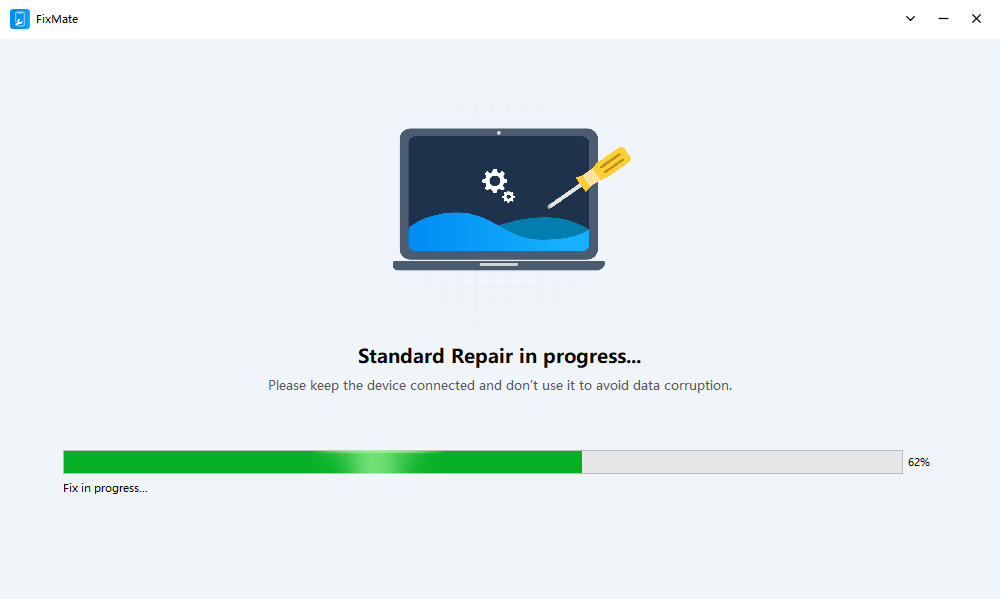
After the repair process, check your Control Center and turn on the flashlight again.
4. Conclusion
The flashlight is a small but extremely useful feature on the iPhone, helping users quickly illuminate dark spaces when needed. When the flashlight suddenly stops working, the problem is often caused by camera conflicts, Low Power Mode, system glitches, overheating, or software bugs.
Fortunately, most issues can be fixed by closing the camera app, restarting the device, adjusting flashlight brightness, updating iOS, or resetting system settings. These solutions resolve the majority of flashlight problems in just a few minutes.
However, if the issue persists, the underlying cause may be a deeper iOS system error. In that case, using a professional repair tool like AimerLab FixMate is one of the most reliable solutions. FixMate can repair system bugs safely and efficiently without data loss, helping restore your iPhone’s flashlight and overall functionality.