




How to Resolve iPhone Switched to Incompatible eSIM Stuck in Boot Loop?

With the evolution of mobile connectivity, eSIM technology has become increasingly popular across modern iPhones. It allows users to switch carriers digitally without needing a physical SIM card. However, while convenient, eSIMs can sometimes introduce unexpected issues—especially when an incompatible or corrupted eSIM profile is installed. One of the most frustrating problems users may encounter is an iPhone stuck in a boot loop after switching to an incompatible eSIM.
In this situation, the device repeatedly restarts and never fully loads the system, making it nearly impossible to access settings or remove the problematic eSIM. This issue often occurs due to failed carrier activation, corrupted network configurations, or software conflicts triggered during the eSIM installation process.
In this guide, we’ll walk you through practical and proven solutions to resolve the iPhone boot loop caused by an incompatible eSIM.
1. How to Resolve iPhone Switched to Incompatible eSIM Stuck in Boot Loop?
1.1 Force Restart Your iPhone
Before trying advanced methods, start with a simple force restart. This can sometimes break the boot loop if it’s caused by a temporary glitch.
Steps (iPhone 8 and later):
- Press and quickly release the Volume Up button
- Press and quickly release the Volume Down button
- Press and hold the Side button until the Apple logo appears
If the device boots normally, immediately go to Settings → Cellular and remove the problematic eSIM profile.
1.2 Disable Network Interference
Since the issue is related to eSIM activation, preventing the device from connecting to a network can help.
What to do:
- Remove any physical SIM card (if inserted)
- Move to an area with weak or no signal
- Try restarting the device
This can stop the iPhone from repeatedly attempting to activate the incompatible eSIM during startup.
1.3 Use Recovery Mode to Update iOS
If the boot loop persists, using Recovery Mode is one of the most effective ways to repair the system without deleting your data.
Steps:
- Connect your iPhone to a computer
- Open:
- Finder (on macOS Catalina and later)
- iTunes (on Windows or older macOS)
- Put your iPhone into Recovery Mode:
- Press Volume Up → Volume Down → hold Side button
- Keep holding until the recovery screen appears
- When prompted, select Update
This process reinstalls iOS while keeping your data intact, often resolving system-level conflicts caused by eSIM issues.
1.4 Restore Your iPhone (Last Resort)
If updating doesn’t work, restoring your iPhone may be necessary.
Important:
- This will erase all data on your device
- Only proceed if you have a backup or no other option
Follow the same steps as Recovery Mode, but choose Restore instead of Update. This installs a fresh version of iOS and removes any corrupted configurations, including problematic eSIM profiles.
2. Bonus: Fix iPhone Boot Loop Easily with AimerLab FixMate
If you’re looking for a simpler, faster, and safer way to fix the issue, AimerLab FixMate is an excellent solution.
FixMate is a dedicated iOS system repair tool designed to resolve over 200+ issues, including boot loops, stuck Apple logo, recovery mode loops, and more—without requiring technical expertise.
Key Features of FixMate:
- One-click Exit/Enter Recovery Mode (free feature)
- Standard Repair Mode fixes issues without data loss
- Deep Repair Mode for severe system problems
- Supports all iPhone models and iOS versions
- Simple, beginner-friendly interface
How to Fix Your iPhone Boot Loop Issue Using AimerLab FixMate:
- Download and install FixMate Windows version on your computer.
- Connect your iPhone via USB, then launch FixMate and choose Start.
- Select Standard Repair (recommended), then download the required firmware package for your iPhone.
- Click to start reparing the system issues on your device; Once complete, your iPhone will restart automatically.
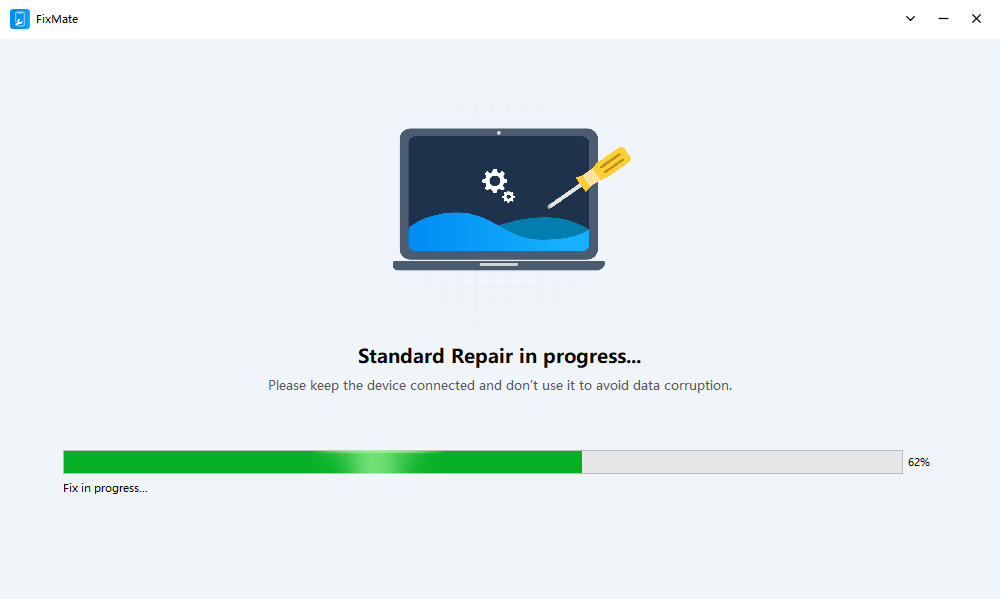
Within minutes, your iPhone should return to normal operation – without wiping your data.
3. Conclusion
An iPhone stuck in a boot loop after switching to an incompatible eSIM can be alarming, but it’s usually fixable with the right approach. Starting with simple steps like force restarting and limiting network access can sometimes resolve the issue quickly. For more persistent problems, Recovery Mode and system restore offer reliable solutions.
However, if you want the most efficient and user-friendly method, using a professional repair tool like AimerLab FixMate is highly recommended. It simplifies the entire process, fixes the system without data loss, and saves you time and frustration.
By following the methods outlined in this guide, you can confidently resolve eSIM-related boot loop issues and get your iPhone back to normal in no time.