




How to Resolve iPhone Speaker Grayed Out?

The speakerphone feature on an iPhone makes it easy to enjoy hands-free conversations, join conference calls, or simply hear callers more clearly. However, it can be frustrating when you make or receive a call and discover that the Speaker button is grayed out. Since the option is disabled, tapping it has no effect, leaving you unable to switch audio to the loudspeaker.
In this guide, we’ll briefly explain why the iPhone speaker becomes grayed out during calls and walk you through the most effective solutions.
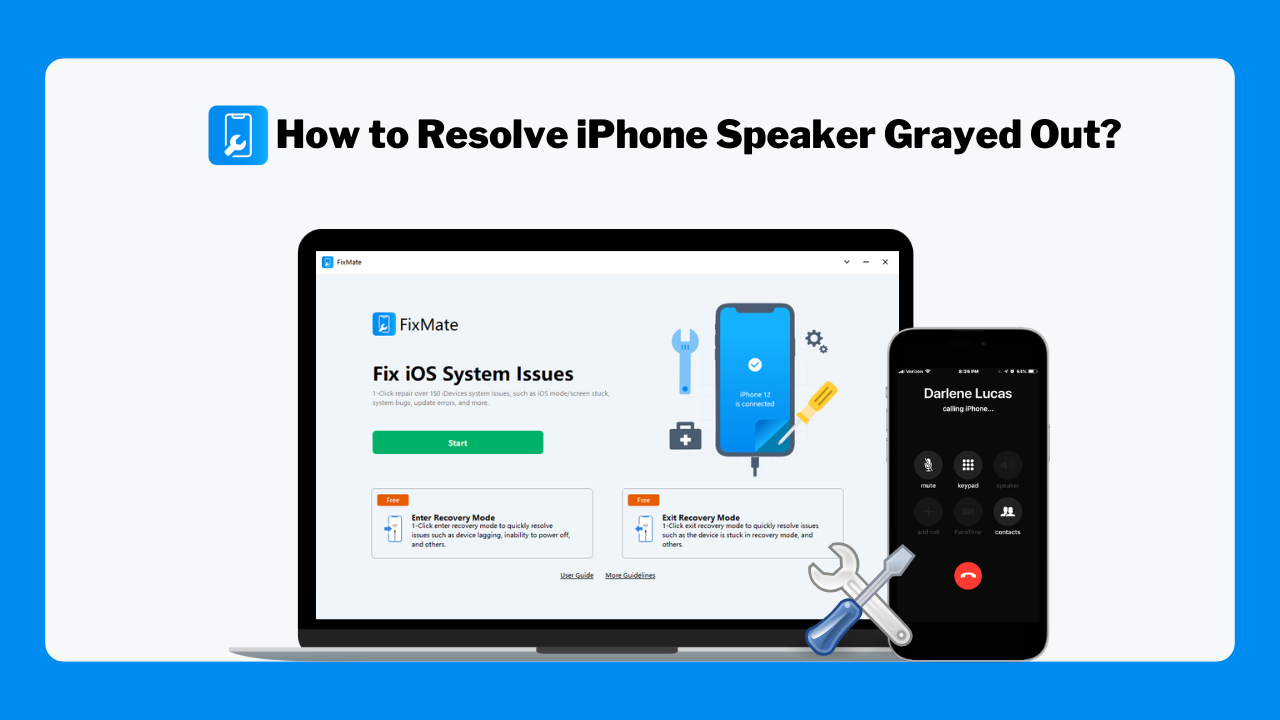
1. Why Is the iPhone Speaker Grayed Out During Calls?
There are several possible reasons why the Speaker button becomes unavailable during phone calls, including:
- Temporary iOS glitches that interfere with the phone app or audio services.
- Bluetooth connections that route audio to wireless headphones, speakers, or your car instead of the iPhone.
- Outdated or buggy iOS versions containing software bugs affecting call functions.
- Microphone issues, since the speakerphone relies on both the speaker and microphone during conversations.
- Corrupted system files caused by interrupted updates or software errors.
- Hardware damage, such as a faulty microphone, speaker, audio IC chip, or internal components after a drop or water exposure.
Fortunately, many software-related causes can be fixed without replacing your iPhone.
2. How to Resolve iPhone Speaker Grayed Out?
Try the following methods in order, starting with the simplest solutions.
Method 1: Restart Your iPhone
Restarting your iPhone refreshes system processes and often clears temporary software bugs.
Turn off your iPhone > Wait about 30 seconds > Turn it back on > Make a phone call and check whether the Speaker button is active.
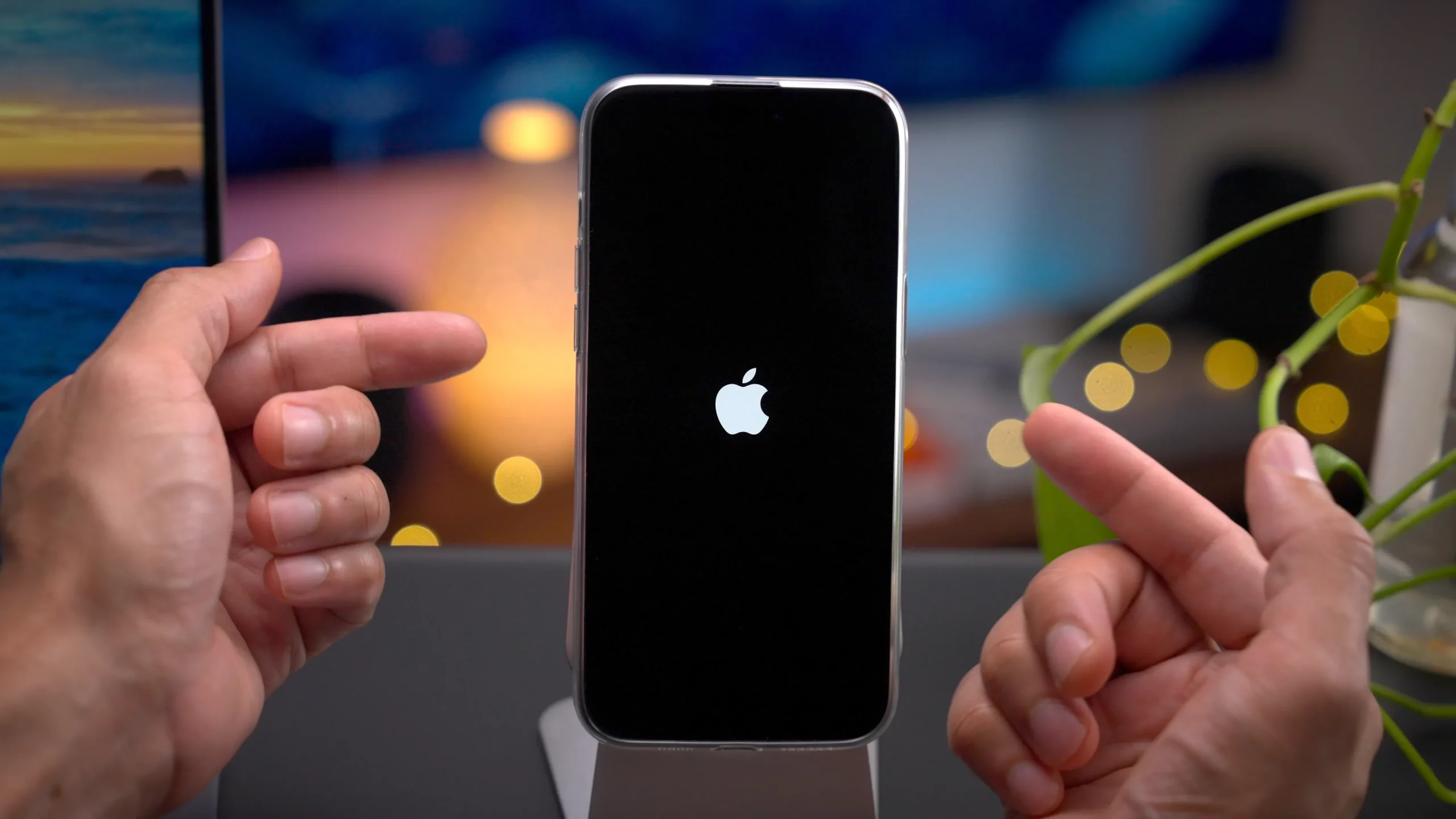
This quick step solves many minor iOS issues.
Method 2: Disconnect Bluetooth Devices
If your iPhone is connected to a Bluetooth device, call audio may be redirected automatically.
To disconnect Bluetooth:
- Open Settings > Bluetooth > Turn Bluetooth off temporarily.
- Disconnect any paired headphones, earbuds, speakers, or car systems.
- Place another phone call.
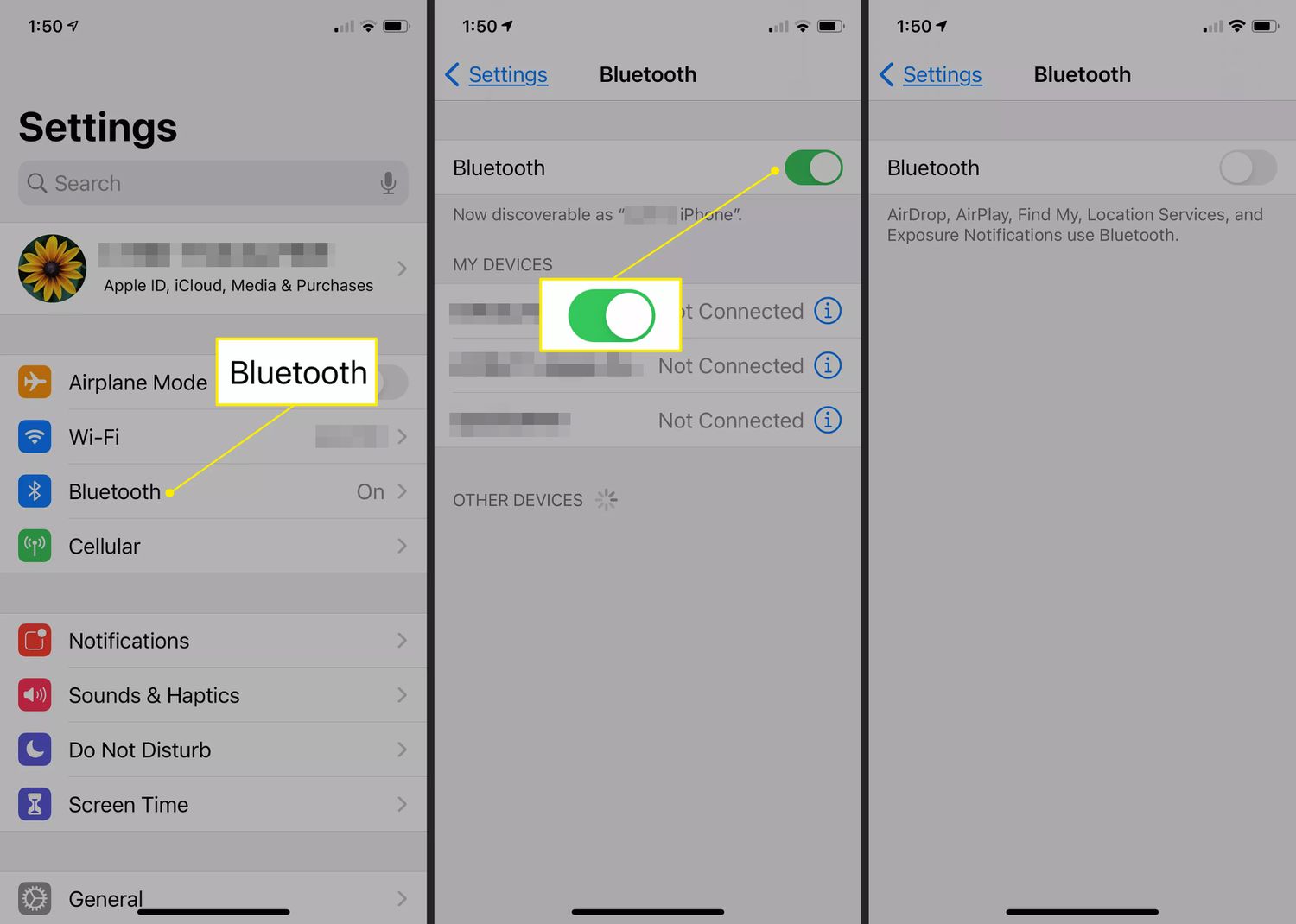
If the Speaker button works again, the Bluetooth connection was likely causing the issue.
Method 3: Update iOS
Apple frequently releases updates that fix bugs affecting phone calls and audio functions.
To update iOS:
Visit Settings > General > Software Update to check for updates, then download and install the newest iOS release if available.
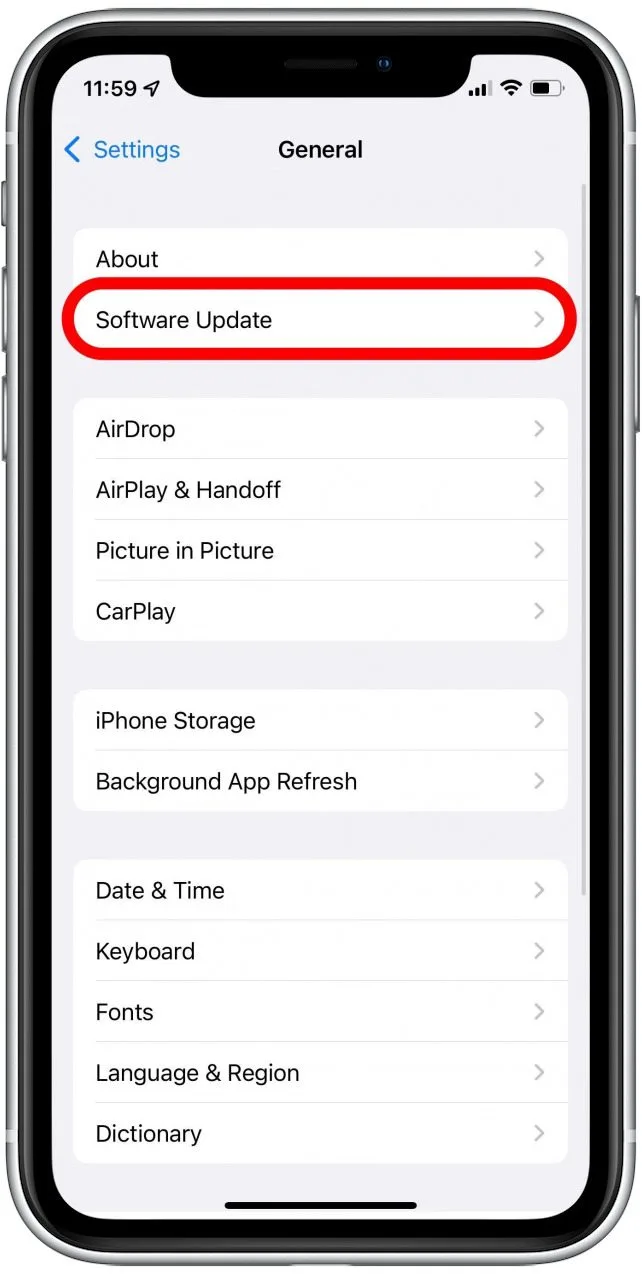
Restart your iPhone after the update is complete.
Method 4: Test the Microphone
A malfunctioning microphone can prevent speakerphone from being enabled.
Try these tests:
- Record a Voice Memo.
- Record a video using the Camera app.
- Activate Siri.
- Make a FaceTime audio call.
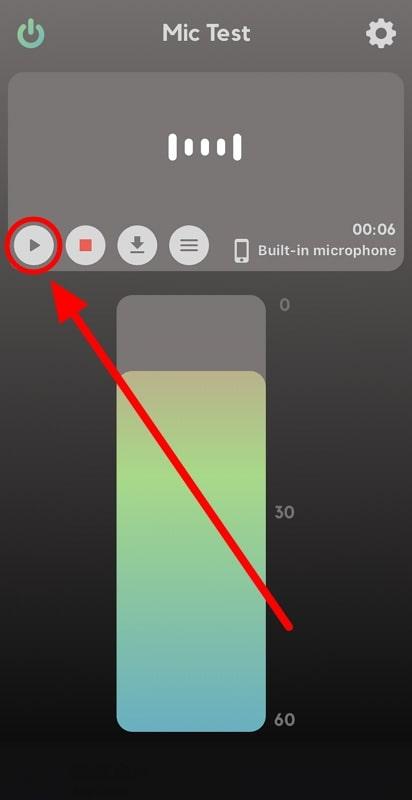
If the microphone doesn’t work in any app, it may require repair.
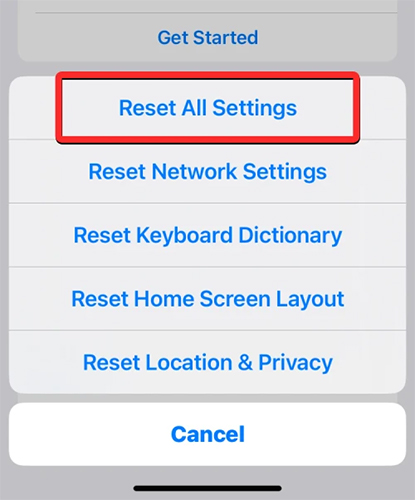
Method 5: Reset All Settings
Incorrect or corrupted settings may also affect system functions.
To reset all things:
Open Settings and tap General > Select Transfer or Reset iPhone, then tap Reset > Choose Reset All Settings.
If the microphone doesn’t work in any app, it may require repair.
Method 6: Restore Your iPhone
If none of the previous solutions work, restoring your iPhone can eliminate deeper software corruption.
Before restoring:
- Back up your important data.
Then:
- Connect your iPhone to your computer.
- Open Finder (Mac) or iTunes (Windows).
- Select your device.
- Choose Restore iPhone.
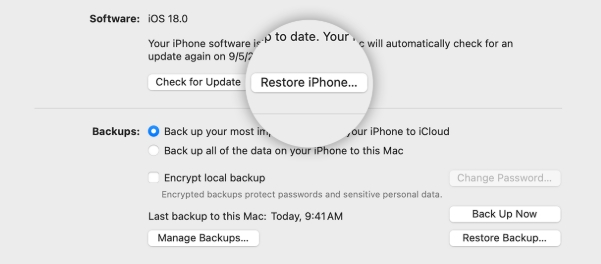
Once the restore is complete, test the speaker before restoring your backup if possible.
Method 7: Repair iOS System Using AimerLab FixMate
If your iPhone’s speaker remains grayed out after basic troubleshooting, the problem may stem from corrupted iOS system files. In this case, AimerLab FixMate offers a simple way to repair system-related issues without requiring advanced technical knowledge.
AimerLab FixMate is an iOS repair tool designed to fix a wide range of software problems, including:
- Speaker button grayed out during calls
- iPhone stuck on the Apple logo
- Recovery Mode loops
- Frozen or black screens
- Boot failures
- Other common iOS system errors
Steps to repair your iPhone with AimerLab FixMate:
- Download and install AimerLab FixMate on your computer (Windows or Mac).
- Launch the program and connect your iPhone using a USB cable.
- Click Fix iOS System Issues, click Start and choose Standard Repair, which repairs the system without erasing your personal data in most cases.
- Download the recommended firmware package, then let the software to complete the repair process.
- After your iPhone restarts, make a phone call to check whether the Speaker button is working again.
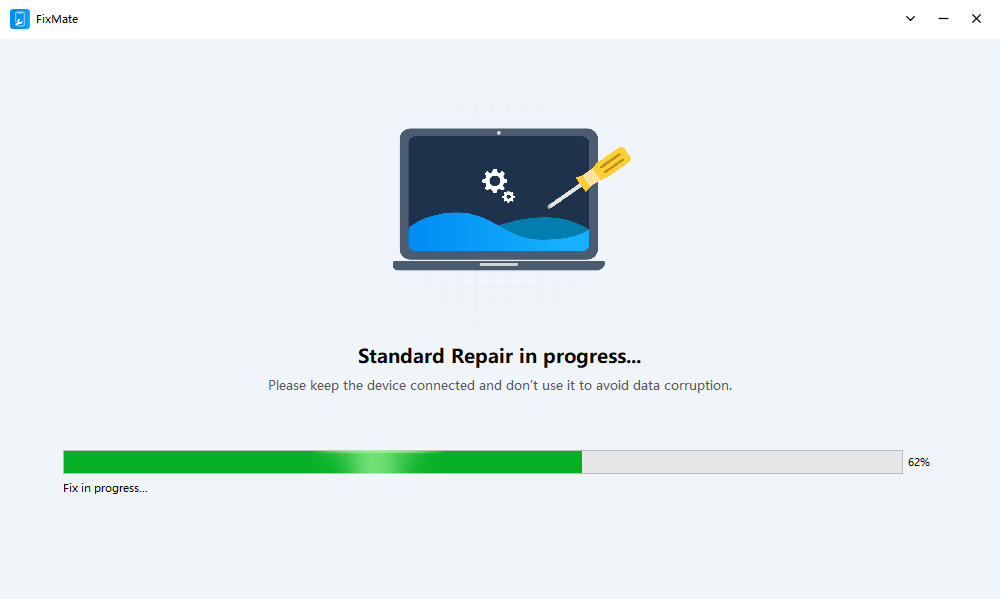
If the issue is software-related, FixMate can often restore normal functionality without requiring a factory reset.
3. Conclusion
A grayed-out Speaker button during iPhone calls can be caused by software glitches, Bluetooth conflicts, outdated iOS versions, corrupted system files, or hardware damage. In many situations, simple fixes like restarting your iPhone, disconnecting Bluetooth devices, updating iOS, or resetting settings are enough to restore the speaker function.
If these methods don’t solve the problem, AimerLab FixMate provides an effective solution for repairing iOS system issues that may be preventing the Speaker button from working correctly. With its easy-to-use interface and Standard Repair mode, it can resolve many software-related problems without deleting your personal data.
If the issue persists even after system repair and a full restore, it’s likely due to hardware failure, and contacting Apple Support or an authorized repair center is the best next step. By following the troubleshooting methods above, you can identify the root cause and improve your chances of getting your iPhone’s speaker working normally again.