




How to Resolve “iPhone Not Activated – Contact Your Carrier”?

If you see the message “iPhone is not activated – Contact your carrier if this problem continues to occur” when trying to set up your iPhone, it can be frustrating. This problem prevents you from completing the initial setup and using your device. Fortunately, it usually has identifiable causes and practical solutions. This guide explores the reasons behind the issue iPhone is not activated and provides step-by-step methods to fix it, including a bonus solution using a professional repair tool.
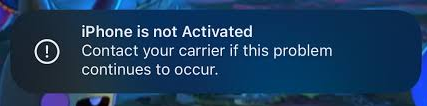
1. What Causes of the “iPhone is not Activated” Error?
Several factors can trigger this problem:
1.1 SIM Card Issues
Your iPhone must detect a valid SIM card from a supported carrier to complete activation. Common SIM card problems include:
- SIM card not inserted correctly
- SIM card is damaged or expired
- Using a SIM from a different carrier than the iPhone is locked to
1.2 Carrier Restrictions
Some iPhones are carrier-locked, meaning they can only be activated with a specific carrier’s SIM card. Attempting to activate with an unsupported carrier will trigger the error. Additionally, if the carrier’s activation server is temporarily down, the device may fail to activate.
1.3 Network or System Problems
- Unstable Wi-Fi or cellular network
- Apple’s activation servers experiencing downtime
- iOS glitches or bugs that prevent proper activation
1.4 Device Status Issues
- iPhone reported as lost or stolen, and thus blacklisted
- Activation lock or Apple ID conflicts from previous ownership
2. How to Resolve “iPhone Not Activated – Contact Your Carrier”?
Here are several methods to resolve the “iPhone is not activated – Contact your carrier if this problem continues to occur” error.
2.1 Check and Replace Your SIM Card
Ensure the SIM card is properly inserted and functioning:
- Power off your iPhone and remove the SIM card.
- Inspect the SIM card for damage or dirt.
- Reinsert the SIM card properly.
- If possible, test with another valid SIM card from the same or supported carrier.
If the iPhone is locked to a carrier, make sure you are using the correct carrier’s SIM card.
2.2 Restart or Force Restart Your iPhone
In many cases, performing a simple restart helps fix minor glitches:
For iPhone 8 and later:
- Press Volume Up, then Volume Down, and hold the Side Button until the Apple logo appears.
For iPhone 7 / 7 Plus:
- Press and hold Volume Down + Power Button until the Apple logo appears.
For iPhone 6s and earlier:
- Press and hold Home + Power Button until the Apple logo appears.
A force restart can help resolve temporary software glitches that prevent the iPhone from activating.
2.3 Connect to a Stable Network
Activation requires a reliable connection to Apple’s servers:
- Connect to a strong Wi-Fi network rather than relying solely on mobile data.
- Avoid public or restricted networks that may block activation servers.
- Test using a mobile hotspot if the Wi-Fi connection is unstable.
2.4 Activate Using a Computer
If network issues persist, try using a computer to activate your iPhone:
- On Windows, use iTunes
- On Mac, use Finder
Steps:
- Connect the iPhone to the computer.
- Launch iTunes or Finder and select your device.
- Follow the prompts to activate the iPhone.
- You can choose to Update (keeps your data) or Restore (wipes the device).
Using a computer can bypass some network-related activation issues.
2.5 Check Apple ID and Activation Lock
An iPhone previously linked to another Apple ID may block activation:
- Enter the correct Apple ID and password during setup.
- If you purchased a used device, ask the previous owner to remove it from their account.
- For enterprise or school devices, contact the administrator to confirm device enrollment.
2.6 Update or Restore iOS
Sometimes, iOS glitches prevent proper activation:
- Connect the iPhone to a computer.
- Use Finder or iTunes to Update iOS without erasing data.
- If that fails, choose Restore iPhone to reinstall the system from scratch.
This ensures corrupted system files aren’t causing the activation error.
3. Bonus: Fix System Issues with AimerLab FixMate
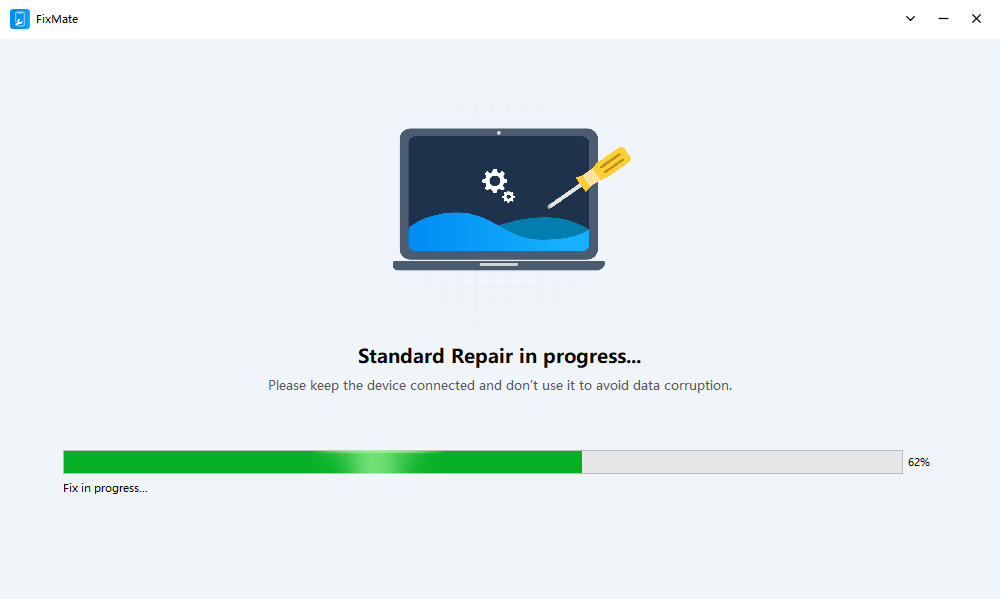
If standard troubleshooting fails, the issue may be caused by deeper iOS system problems. In such cases, a professional repair tool like AimerLab FixMate can help.
Why Use FixMate:
- Repairs iOS system issues that prevent activation.
- Standard Repair fixes most problems without erasing data.
- Deep Repair handles severe system errors that normal troubleshooting cannot fix.
- One-click enter/exit Recovery Mode.
- Beginner-friendly, no technical skills required.
When to Use FixMate:
- Device stuck on the “Contact Your Carrier” screen
- Activation fails despite correct SIM and network
- iPhone freezes or has software glitches
- Other iOS 26.x bugs preventing activation
With FixMate, you can restore your iPhone to a fully functional state quickly and safely.
4. Conclusion
The “iPhone is not activated – Contact your carrier if this problem continues to occur” message can be caused by SIM card issues, carrier restrictions, network problems, device status, or system glitches. Most users can fix it by checking their SIM, restarting the iPhone, using a stable network, activating via a computer, or verifying Apple ID settings.
However, when standard methods fail, the problem is often due to deeper iOS system errors. That’s where AimerLab FixMate becomes invaluable. Its powerful repair capabilities, ease of use, and safe repair modes make it the recommended solution for resolving activation issues efficiently and without data loss.
For anyone struggling with iPhone activation errors, FixMate provides a faster, safer, and more reliable way to get your device up and running.